
If you are a Magento developer, installing SSL on your localhost is highly recommended. During module development, there may be situations where your website needs to support the HTTPS protocol. This is especially important when working with web services, payment modules, or features that require secure connections. Without SSL enabled, some modules or API integrations might fail to function correctly.
This guide will show you how to install SSL on localhost using XAMPP on a Windows system, step by step.
Important: You need two files: cert.conf and makecert.bat. Make sure you download these files before proceeding.
Step 1: Prepare the Files
Create a folder named crt inside xampp/apache/. Place both cert.conf and makecert.bat into this folder. The folder structure should be:
xampp/apache/crt/cert.conf
xampp/apache/crt/makecert.bat
Step 2: Run makecert.bat
Open makecert.bat and enter your site information as requested. You can use any domain name you like; in this guide, we use site.local. After running the script, a folder named site.local will be generated automatically. This folder will contain two important files: server.crt and server.key.
Step 3: Install the Certificate
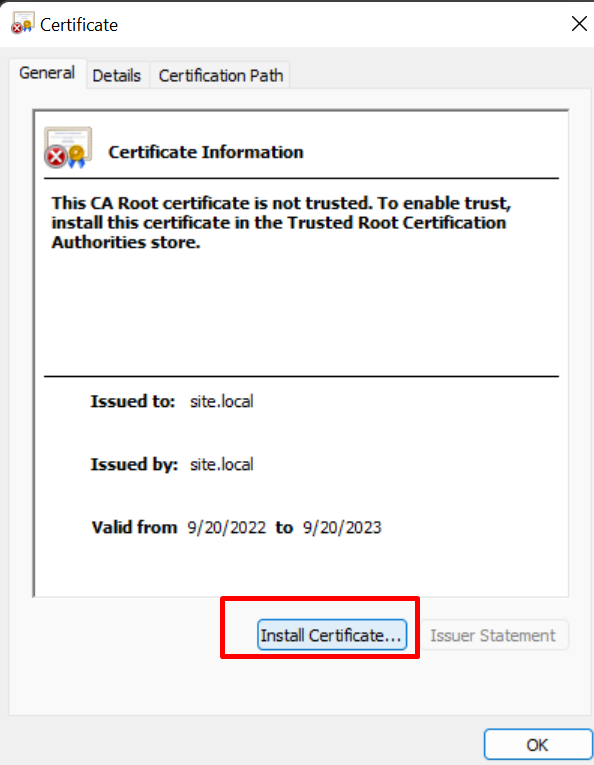
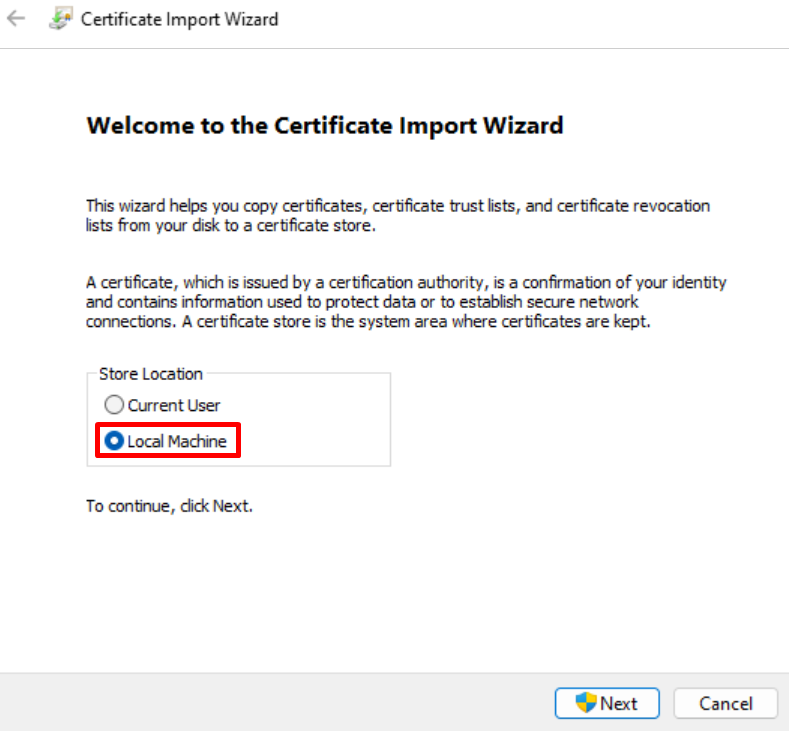
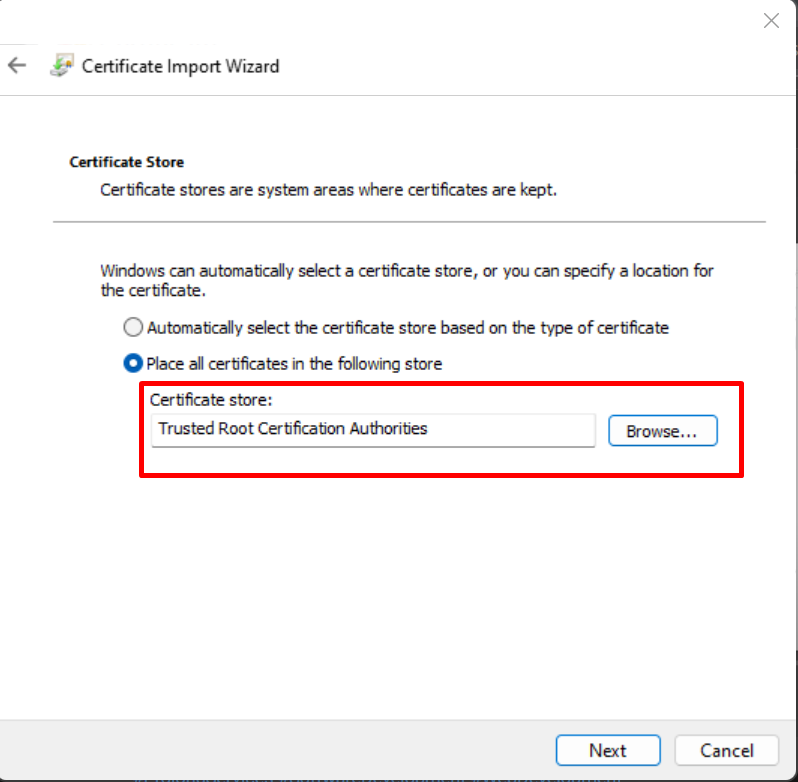
Open the server.crt file located in xampp/apache/crt/site.local and follow the certificate installation steps on Windows. Click Next, then Finish to complete the installation. This process ensures your Windows system trusts the self-signed SSL certificate.
Step 4: Configure Apache
Next, edit httpd-xampp.conf located in xampp/apache/conf/extra. Add the following VirtualHost configuration at the bottom of the file:
<VirtualHost *:80>
 DocumentRoot "D:/xampp/htdocs"
 ServerName site.local
 ServerAlias *.site.local
</VirtualHost>
<VirtualHost *:443>
 DocumentRoot "D:/xampp/htdocs"
 ServerName site.local
 ServerAlias *.site.local
 SSLEngine On
 SSLCertificateFile "crt/site.local/server.crt"
 SSLCertificateKeyFile "crt/site.local/server.key"
</VirtualHost>
This ensures that Apache serves your site over HTTPS using the newly created certificate.
Step 5: Update the Hosts File
Finally, edit the hosts file in C:\Windows\System32\drivers\etc and add the following line:
127.0.0.1 site.local
# 127.0.0.1 localhost
# ::1 localhost
After completing these steps, you can access your localhost site via https://site.local. This setup is essential for testing secure Magento modules and other features requiring HTTPS, and it ensures that your local development environment closely matches a live production server.
