
Setting up a cron job is mandatory for any Magento 2 store. Without cron jobs, essential background processes—such as reindexing, sending transactional emails, updating catalog price rules, generating sitemaps, and clearing log files—will fail to run automatically.
In this step-by-step guide, you will learn how to properly configure a Magento 2 cron job in cPanel using command-line interface (CLI) commands.
Why Avoid Running Magento 2 Cron via HTTP Request?
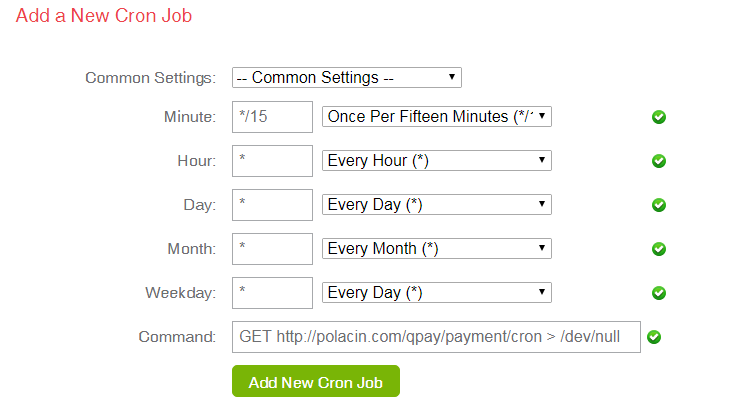
Triggering Magento cron via a web URL (e.g., calling pub/cron.php via wget or curl) is strongly discouraged in Magento 2. Executing cron via HTTP can result in timeout errors, high resource consumption, and security vulnerabilities. Running the native CLI command (bin/magento cron:run) directly through the PHP binary is the officially recommended approach.
Step 1: Locate Your PHP Binary Path and Magento Root Directory
Before adding the cron schedule, you need two critical pieces of information from your hosting environment:
- Your PHP Executable Path: cPanel usually provides PHP binaries under paths like:
/usr/local/bin/php(Default PHP version)/opt/cpanel/ea-php81/root/usr/bin/php(cPanel EA-PHP 8.1)/usr/bin/php
- Your Absolute Magento Root Path: For example,
/home/yourusername/public_html.
Step 2: Add the Cron Job in cPanel
Follow these steps to schedule your cron job inside cPanel:
- Log in to your cPanel account.
- Navigate to the Advanced section and click on Cron Jobs.
- Under Add New Cron Job, set the schedule frequency:
- Common Settings: Select Once Per Minute (* * * * *) or Every 5 Minutes (*/5 * * * *). Magento recommends running the cron task every minute to process queues promptly.
- In the Command field, enter the following command (replace
/home/yourusername/public_htmlwith your actual Magento path and adjust your PHP version path if necessary):
/usr/local/bin/php /home/yourusername/public_html/bin/magento cron:run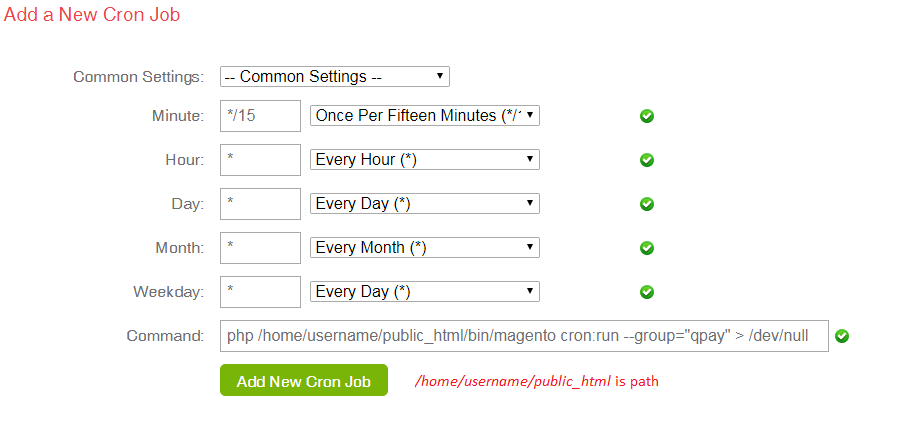
Recommended: Enable Output Logging for Debugging
To keep track of cron execution and capture potential runtime errors, append a redirect log instruction to the command:
/usr/local/bin/php /home/yourusername/public_html/bin/magento cron:run >> /home/yourusername/public_html/var/log/cron.log 2>&1Step 3: Verify That Magento 2 Cron is Running Properly
After saving the cron job in cPanel, verify that the task runs without issues:
- Check Log Files: Open your Magento file manager or SSH, then inspect
var/log/cron.log. You should see updated entries every minute. - Check Cron Schedule Table: Access your database via phpMyAdmin and check the
cron_scheduletable. You should see rows with statuses likepending,running, andsuccess.
Troubleshooting Common Magento 2 Cron Issues
- PHP Version Mismatch: Ensure the PHP CLI version matched with your cPanel web version. Running Magento 2.4.x on PHP 7.4 CLI will trigger memory or syntax errors.
- File Permissions: Ensure the
bin/magentoexecutable has proper read and execute permissions (typically0755or0775).
