
If you are installing Magento 2.3.0 on a Windows system using XAMPP, you might encounter an issue where the Magento backend login form does not appear. This prevents you from logging into the admin panel.
This is a common problem on Windows because Magento expects file paths with forward slashes (/) but Windows uses backslashes (\). Here’s how to fix it.
Step 1: Open Validator.php
Navigate to the following file in your Magento project:
vendor\magento\framework\View\Element\Template\File\Validator.php
Open it using a code editor such as VS Code, Sublime Text, or Notepad++.
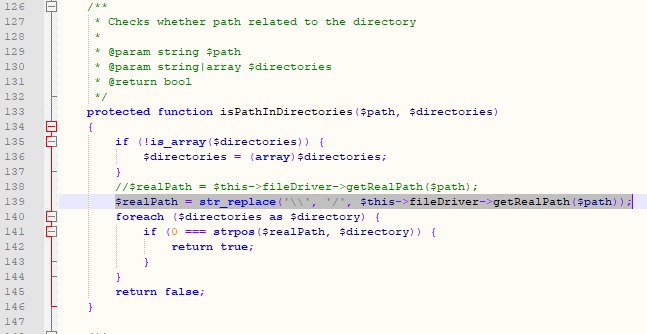
Step 2: Modify the Script at Line 138
Locate line 138 in Validator.php. The original code looks like this:
$realPath = $this->fileDriver->getRealPath($path);
Replace it with:
$realPath = str_replace('\\', '/', $this->fileDriver->getRealPath($path));
This change converts Windows backslashes to forward slashes, which Magento expects.
Step 3: Save and Refresh
- Save the file.
- Clear Magento cache:
php bin/magento cache:clean
Reload your Magento backend login page. The login form should now appear correctly.
By updating the path in Validator.php, you fix the login form issue on Windows XAMPP installations. This small tweak ensures Magento correctly interprets file paths on Windows systems.
DONE! You can now log in to your Magento 2.3.0 admin panel without issues.
